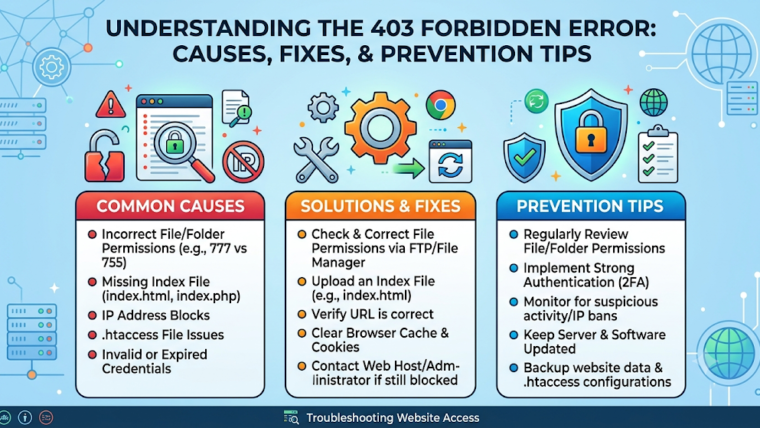


A website error can frustrate visitors and affect a business’s online reputation. One common issue users encounter is the 403 Forbidden Error. This HTTP status code appears when a server understands a visitor’s request but refuses to allow access to the requested webpage. Understanding why this error occurs and how to fix it can help website owners maintain a smooth browsing experience.
What Is a 403 Forbidden Error?
A 403 Forbidden Error is an HTTP response indicating that access to a particular webpage or resource is restricted. Unlike a 404 error, which means a page cannot be found, a 403 error means the requested resource exists, but the server does not permit access.
Visitors may see messages such as “403 Forbidden,” “You don’t have permission to access this resource,” or “Access Denied.” These messages can appear because of incorrect server settings, restricted permissions, or security rules.
Common Causes of a 403 Forbidden Error
Several factors can trigger this website error. Some of the most common causes include:
1. Incorrect File Permissions: Websites require appropriate file and folder permissions. Incorrect settings may prevent the server from accessing important website files.
2. Faulty .htaccess Configuration: An incorrect rule in the .htaccess file can block visitors from accessing specific pages or directories.
3. IP Address Restrictions: Website administrators may block certain IP addresses through security settings, firewalls, or hosting configurations.
4. Security Plugins and Firewalls: Security tools sometimes mistakenly identify legitimate visitors as suspicious and restrict their access.
5. Missing Index File: If a directory does not contain a valid index file and directory browsing is disabled, the server may return a 403 response.
How to Fix a 403 Forbidden Error
Resolving this issue depends on its underlying cause. Website owners can try several troubleshooting steps:
- Check File Permissions: Review file and folder permissions through your hosting control panel or FTP client. Common starting values are 644 for files and 755 for directories, subject to hosting requirements.
- Review the .htaccess File: Temporarily rename the file to test whether incorrect rules are causing the problem. Back it up before making changes.
- Check Security Settings: Review firewall rules, security plugins, and IP restrictions to identify accidental blocks.
- Verify the Homepage File: Ensure that the website directory contains a valid index file, such as index.php or index.html.
- Contact Your Hosting Provider: If the issue continues, ask your hosting company to check server logs and access restrictions.
How to Prevent 403 Errors on Your Website
Preventing access-related errors requires regular website maintenance. Keep your content management system, themes, and plugins updated. Use reliable hosting, configure file permissions correctly, and review security settings periodically. Regular backups can also help restore website functionality when configuration changes cause unexpected problems.
Conclusion
A 403 Forbidden Error can interrupt website access and negatively affect user experience. Identifying its cause, checking server permissions, and reviewing security configurations are essential steps toward resolving it. Businesses looking for professional website support can explore Digitaladdex for web development, website maintenance, and technical assistance. A properly maintained website helps deliver a more reliable, secure, and user-friendly online experience.